After writing my introduction to Typst, I wanted to go beyond the usual report with headings, equations, and a bibliography. What else could I make with the same tool?
This post starts with a small book that needs a cover. Then we make business cards for a team and nameplates for a conference. After that, we turn a PDF into a guide readers can click through, prepare two versions of a classroom worksheet, and draw a mathematical model directly in our study notes.
Each example begins with a situation you can picture: who needs the document, what they want it to do, and which part Typst can help with. Some involve a list of people. Others are built entirely from text, geometry, or a few equations.
Before you start
The six examples were compiled and rendered with Typst 0.15.0. You should know variables, functions, imports, and the difference between code and markup.
Get the source files to follow along:
Each .typ file is a complete, independent document. The code blocks below show its important parts and link to the full file.
typst compile generative-art.typ art.pdf --ignore-system-fontsUse the same command with any of the other filenames. The examples use the bundled Libertinus Serif font; --ignore-system-fonts makes font selection consistent. Change the output extension to .svg for a vector asset or .png for a raster preview. For a multi-page document, quote a pattern such as "guide-{p}.svg", or export one page with --pages 1.
A book cover drawn from an equation
Imagine you are writing a short book about mathematics. The text is almost ready, but the cover still looks empty. You want a simple graphic that fits the subject, and you would like to change its shape and colours without drawing everything again.
Typst can draw that graphic in the same file as the cover. If you later write a second booklet, you can keep the design and change a few numbers to give it its own appearance.
We will draw a layered polar rosette. Its radius varies with the angle:
R controls the outer radius, k the number of lobes, and φ the phase of the radius variation. We sample the curve, convert polar coordinates to page coordinates, and draw six smaller copies of the same path.
Build the drawing
#let rosette(petals: 7, phase: 0deg, radius: 43mm) = {
  let center = 48mm
  let samples = 720
  let points = range(samples + 1).map(i => {
    let angle = i * 360deg / samples
    let r = radius * (0.7 + 0.3 * calc.cos(petals * angle + phase))
    (center + r * calc.cos(angle), center + r * calc.sin(angle))
  })
  block(width: 96mm, height: 96mm, {
    for layer in range(6) {
      let scale = 1 - layer * 0.09
      let path = points.map(((x, y)) =>
        (center + (x - center) * scale, center + (y - center) * scale))
      place(top + left, curve(
        stroke: (paint: color.mix((rgb("#68C6C4"), 5 - layer), (rgb("#F0AD79"), layer)), thickness: 0.55pt),
        curve.move(path.first()),
        ..path.slice(1).map(point => curve.line(point)),
        curve.close(),
      ))
    }
  })
}The curve element draws the shape by joining 720 points and closing the path. The small straight segments look like a smooth curve at this size. More points make the approximation finer, but also make the file larger.
The containing block reserves a 96 × 96 mm drawing area. The center is (48mm, 48mm), and the radius never exceeds 43 mm, leaving room around the paths. Scaling each point around the center preserves alignment between layers. Scaling its absolute coordinates would pull the drawing toward the page origin.
Native color.mix produces the changing palette. All geometry is computed in the source; there is no embedded artwork to update separately.
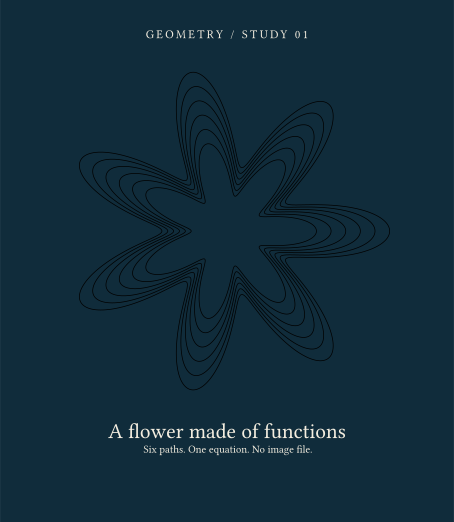
Try it: change #rosette(petals: 7) to #rosette(petals: 11, phase: 40deg). You now have another cover graphic from the same design. Change the radius and drawing area together if you need a different size. To reuse the graphic in another book, move the function into a module and keep the page settings in the book’s own file.
You could use the same idea for chapter ornaments or a series of event posters. The useful part is being able to revise the drawing by changing a few values you understand.
Business cards for everyone in your company
Imagine you run a small company and want business cards for everyone on the team. You already have a JSON file with their names. There are no job titles or individual contact details: each card should show the person’s name, your company, and the same company email address.
You want to design the card once and produce a page for each person. The awkward part is the names: “Ada Nováková” and “Alexandra Konstantinopoulos” need to fit the same space. You should not have to resize them one by one.
Our minimal card is 85 × 55 mm. The name has a 75 × 12 mm rectangle and an approved range of font sizes. We try sizes from largest to smallest, allow wrapping within that rectangle, and fail if none fits.
Measure what will actually be printed
#let fit(value, width, height) = {
  for size in (24pt, 22pt, 20pt, 18pt, 16pt, 14pt) {
    let body = text(size: size, weight: "bold", value)
    let extent = measure(body, width: width)
    let tokens-fit = value.split(" ").all(word =>
      measure(text(size: size, weight: "bold", word)).width <= width)
    if tokens-fit and extent.width <= width and extent.height <= height {
      return (body: body, size: size)
    }
  }
  panic("Name exceeds the layout budget: " + value)
}measure needs layout context. The renderer below runs inside context, after the document has set its font, leading, and hyphenation. The content we measure is the same content we render.
We also check each word on its own. A long surname can stick out of the box even if the paragraph reports the width we assigned to it. Counting letters would miss this, because different letters occupy different amounts of space.
Keep the component bounded
#let card(name, role, email, accent: rgb("#087F8C")) = context {
  let fitted = fit(name, 75mm, 12mm)
  block(width: 85mm, height: 55mm, fill: rgb("#F6F3EB"), {
    place(top + left, dx: 5mm, dy: 6mm,
      text(size: 7pt, tracking: 1pt)[FIELD / STUDIO])
    place(top + left, dx: 5mm, dy: 17mm,
      block(width: 75mm, fitted.body))
    place(top + left, dx: 5mm, dy: 34mm, text(size: 9pt, role))
    place(top + left, dx: 5mm, dy: 43mm, text(size: 8pt, email))
    place(top + left, dy: 52mm,
      rect(width: 85mm, height: 3mm, fill: accent, stroke: none))
    [#metadata((name: name, size_pt: fitted.size / 1pt)) <name-fit>]
  })
}The block reserves the card’s physical rectangle. place positions the fields relative to that block. For this sample, the long name selects 20 pt; a shorter name can retain 24 pt.
The downloaded file renders one sample card. Its second text line and email are fixed; for our company, we will use those for the company name and shared email. If you later add individual titles or addresses, give those fields their own size checks. Placed elements do not move out of each other’s way.
Make a card for each name
Save your list as people.json next to business-card.typ:
[
  { "name": "Ada Nováková" },
  { "name": "Alexandra Konstantinopoulos" }
]
Keep the page settings and the two functions from the downloaded file. Replace its final #card(...) call with this:
#let people = json("people.json")
#for (i, person) in people.enumerate() {
  if i > 0 { pagebreak() }
  card(person.name, "FIELD STUDIO", "[email protected]")
}
Now compile business-card.typ as before. You get a two-page PDF, with one card on each page. Add another name to the JSON file and compile again to include that person. The design stays in one place, and the name-fitting function handles the different lengths.
The invisible metadata records the selected size. With Typst 0.15.x, inspect it using typst eval:
typst eval 'query(<name-fit>).map(it => it.value)' --in business-card.typ --ignore-system-fonts --pretty
When you are ready to print a batch, the extended business card project goes further: it validates the input, adds QR codes and bleed, and arranges cards on double-sided A4 sheets. Its README.md explains the workflow. The small example above is enough to understand how one design becomes a card for each person.
For a printed QR that remains useful after contact details change, encode a stable profile URL you control. Update the destination page when necessary. The printed code stays the same; the PDF does not update itself.
The same fitting function can help with badges, labels, or certificates. Set a minimum readable size and report a name that cannot fit, so you can decide how to handle it.
Foldable nameplates for a conference
Your conference is next week, and every speaker needs a nameplate for the table. You want people on either side to be able to read the name. The signs also need to stand on their own, and you want to print them on an ordinary printer.
We can make a flat template that folds into a triangular stand. Two panels show the name, one becomes the base, and a small tab holds the shape together. Start with one speaker’s name and test the fold before preparing the rest.
Here are the sizes we will use:
| Part | Dimensions |
|---|---|
| Each of three panels | 180 × 45 mm |
| Glue tab | 180 × 10 mm |
| Complete cutting rectangle | 180 × 145 mm |
| Document page | 200 × 175 mm, including margin and instructions |
The two printed faces meet at the upper fold of the assembled stand. One must therefore be upside down on the flat sheet so that both read upright after folding.
Lay out the nameplate before folding it
#let panel(name, subtitle) = block(width: width, height: face,
  fill: rgb("#EFF4F3"), align(center + horizon)[
    #text(size: 28pt, weight: "bold", name)
    #v(2mm)
    #text(size: 11pt, subtitle)
  ])

#block(width: width, height: 3 * face + flap, {
  // The two panels share the apex fold; the upper face is upside down flat.
  place(top + left, rotate(180deg, reflow: true,
    panel("Ada Nováková", "Research / FIELD STUDIO")))
  place(top + left, dy: face,
    panel("Ada Nováková", "Research / FIELD STUDIO"))
  place(top + left, dy: 2 * face,
    block(width: width, height: face, align(center + horizon)[
      #text(size: 9pt)[BASE / fold into a triangular stand]
    ]))
  place(top + left, dy: 3 * face,
    block(width: width, height: flap, fill: rgb("#D5E5E1"),
      align(center + horizon)[#text(size: 7pt)[GLUE TAB]]))
  for y in (face, 2 * face, 3 * face) {
    place(top + left, dy: y,
      line(end: (width, 0mm), stroke: (paint: rgb("#087F8C"), thickness: 0.6pt, dash: "dashed")))
  }
  place(top + left, rect(width: width, height: 3 * face + flap,
    fill: none, stroke: 0.7pt + rgb("#183343")))
})rotate(180deg, reflow: true, ...) turns the first name panel upside down on the sheet. After folding, it reads the right way up on the other side of the stand. We rotate the whole panel, so its position does not depend on how long the name is. The fold lines use the same face value as the panels, keeping the two aligned.
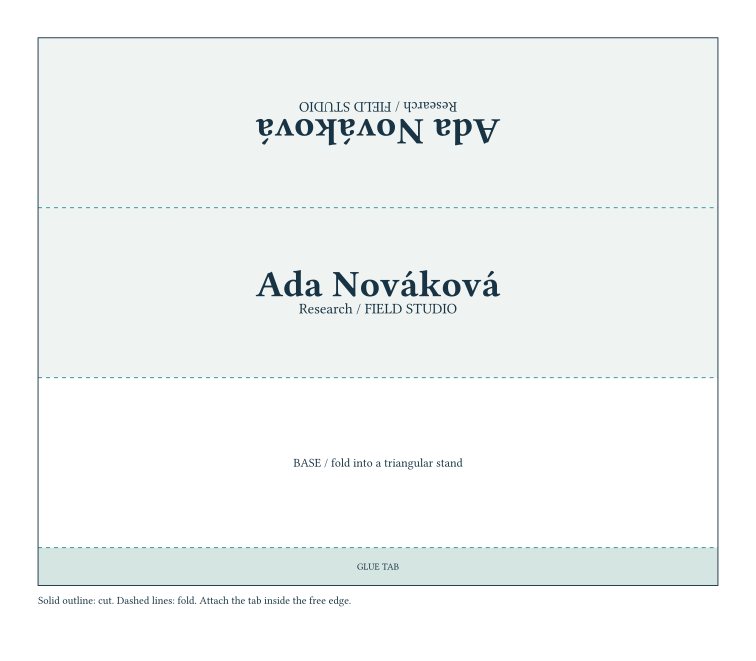
The solid outline is the cut boundary. The dashed lines are folds. Print the PDF at actual size / 100%, cut the outline, fold along the three dashed lines, and attach the tab inside the opposite free edge. Try ordinary paper before making a batch in thicker stock. The rendered geometry has been checked; the physical assembly still deserves a real prototype.
Once the sample stands correctly, replace the name and subtitle for each speaker. Both printed faces should use the same values. For a larger conference, put the complete stand inside a function and call it for each name, with a page break between stands. That gives you the same batch workflow as the business cards.
You can also make table numbers, workshop station signs, or small exhibition labels. If you change the panel dimensions, check the page size and text area too. Larger panels do not automatically enlarge the text.
A troubleshooting guide you can click through
You help run a small office, and people keep asking what to do when the shared printer stops working. A long manual is easy to ignore. You want a short guide that asks a question and takes the reader straight to the relevant instructions.
A PDF can do this with links between its own pages. The first page asks whether the printer’s display is on. Clicking an answer opens the appropriate page; each result has a link back to the start. People can use the file offline in a PDF reader that supports internal links.
Give each step a destination
#let choice(destination, body) = block(width: 100%, spacing: 3mm,
  link(destination, block(width: 100%, inset: 4mm,
radius: 2mm, fill: rgb("#EAF3EF"), body)))The choice function turns a text panel into a link. Its destination is a label such as <power> or <queue>, attached to a heading elsewhere in the document. Typst resolves the page for us. We can add a cover or move a section without rewriting page numbers in the links.
Here is the opening question:
= The printer is not printing <start>

Is the printer's display on?

#choice(<queue>)[Yes — check the print queue]
#choice(<power>)[No — check the power]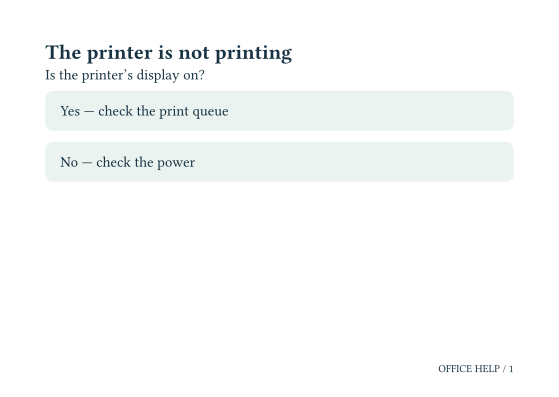
The complete source includes the destination pages and another choice for an unresolved problem. Compile it to PDF and click each answer to check where it leads. The image above shows the appearance; the working links are in the exported PDF.
This gives the reader a choice of routes through the guide. It does not store answers or run a program when clicked. For that, you would need a different kind of tool. Internal links are enough for an offline help guide, a museum activity, or a story where readers choose what happens next.
A student worksheet and a teacher’s copy
Imagine you teach mathematics and are preparing exercises for tomorrow’s lesson. Your students need a worksheet with room to write. You need the same questions with the answers underneath, so you can check their work during class.
You could maintain two documents, but every correction would need to be made twice. Instead, we will write each question and answer together. Typst will produce a student copy with empty work areas and a teacher’s copy with the solutions. Adding a question should update the numbering in both.
Write each question and answer together
#let exercise(prompt, answer) = {
  number.step()
  block(breakable: false, spacing: 5mm, [
    #context text(weight: "bold")[Problem #number.display()]
    #v(2mm)
    #prompt
    #v(3mm)
    #if edition == "answers" {
      block(inset: 4mm, width: 100%, fill: rgb("#EAF3EF"), answer)
    } else {
      rect(width: 100%, height: 22mm, fill: none,
        stroke: (paint: rgb("#A2B5B8"), dash: "dotted"))
    }
    #context [#metadata((edition: edition, number: number.get().first())) <exercise-record>]
  ])
}The complete file defines edition through sys.inputs and validates it against student and answers. The exercise function accepts two content blocks, so both ordinary prose and mathematics can appear in either argument.
The counter advances when we add an exercise. Typst reads its value at the place where the number is printed, so the questions stay in order. breakable: false keeps each question with its work area or answer on the same page.
Here is one authored exercise from the complete file:
#exercise[Differentiate $f(x) = x^3$.][
  By the power rule, $f'(x) = 3x^2$.
]
Build the two documents:
typst compile workbook.typ student.pdf --input edition=student --ignore-system-fonts
typst compile workbook.typ answers.pdf --input edition=answers --ignore-system-fonts
Compare the student and answer editions
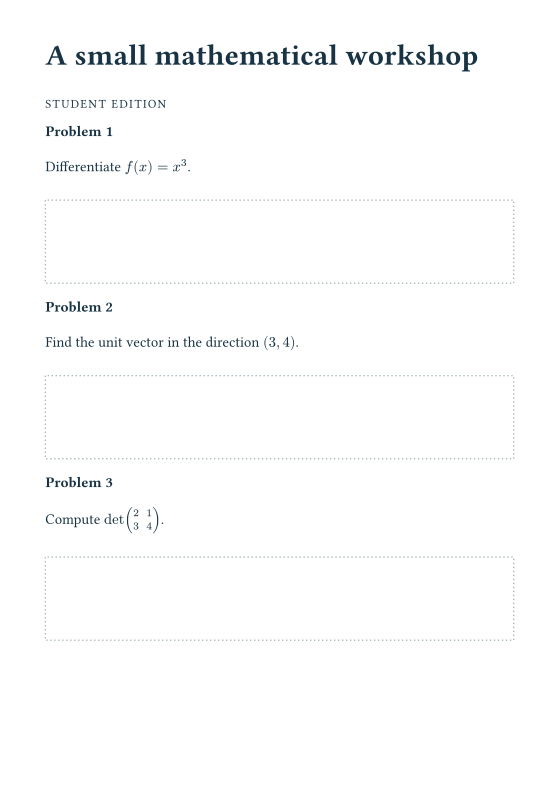
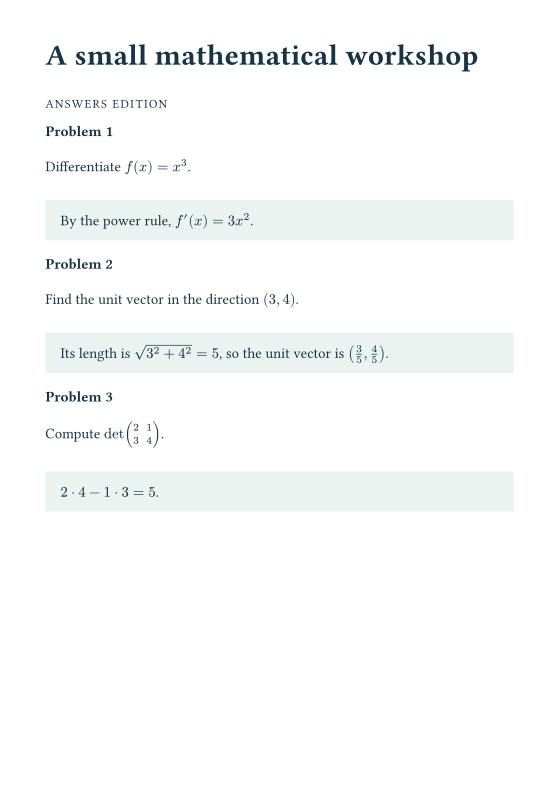
Try it: insert a new exercise between the first two and build both copies. The question numbers should update in both, and the wording should match. The page breaks may differ because an answer and an empty work area need different amounts of space.
The 22 mm work area suits these short exercises. Parameterize its height for longer problems. If an exercise can span a page, revise the breakable: false policy rather than force a large block into a small page.
This also works for a workshop workbook and a facilitator’s copy, or a puzzle book and its solutions. Keep the questions together with their answers, and let the function decide which version to show.
A diagram that helps you understand an equation
You are studying oscillations in a physics course. You understand that friction gradually slows a moving system, but the equations alone do not make its behaviour easy to picture. You want a diagram in your notes that you can change while comparing different amounts of damping.
We will use a simple model of a damped oscillator. Here, x represents position, y represents velocity, and γ controls the damping:
We will draw arrows showing where the system moves from different combinations of position and velocity. We will also trace one example starting point. Changing γ updates the drawing and its displayed value together, so the diagram in your notes stays tied to the model.
Turn the model into a drawing
#let damping = float(sys.inputs.at("damping", default: "0.35"))
#assert(damping >= 0 and damping <= 2, message: "damping must be 0..2")
#let field(x, y) = (y, -x - damping * y)
#let point(x, y) = (50mm + x * 13mm, 50mm - y * 13mm)

#let arrow(x, y, dx, dy) = {
  let norm = calc.sqrt(dx * dx + dy * dy)
  if norm > 0 {
    let (px, py) = point(x, y)
    let (u, v) = (dx / norm, -dy / norm)
    let shaft = 3.5mm
    let (ex, ey) = (px + u * shaft, py + v * shaft)
    place(top + left, dx: px, dy: py,
      line(end: (u * shaft, v * shaft), stroke: 0.6pt + rgb("#087F8C")))
    place(top + left, polygon(
      (ex, ey),
      (ex - u * 1.2mm + v * 0.7mm, ey - v * 1.2mm - u * 0.7mm),
      (ex - u * 1.2mm - v * 0.7mm, ey - v * 1.2mm + u * 0.7mm),
      fill: rgb("#087F8C"), stroke: none,
    ))
  }
}The field function returns the two derivatives. The point function converts an abstract coordinate into millimeters. Its second component subtracts y: mathematical y increases upward, while page coordinates increase downward.
All the arrows have the same length. They show which way the system moves, rather than how fast it moves. At (0, 0), the system is at rest, so we skip the arrow. We draw each shaft with line and its triangular head with polygon, using Typst’s own drawing tools.
The complete file samples a grid, then adds a trajectory:
// Explicit Euler samples: an illustrative path, not a high-accuracy solver.
let (x, y) = (2.7, 0.0)
let trajectory = (point(x, y),)
for _ in range(450) {
  let (dx, dy) = field(x, y)
  (x, y) = (x + 0.025 * dx, y + 0.025 * dy)
  trajectory.push(point(x, y))
}
place(top + left, curve(stroke: 1pt + rgb("#B65C32"),
  curve.move(trajectory.first()),
..trajectory.slice(1).map(p => curve.line(p))))To draw the orange path, we start at one point and repeatedly take a small step in the direction given by the equations. This method is called explicit Euler integration. It is simple enough to follow in the source, but its accuracy depends on the step size. With no damping, it can even make the path drift outward artificially. Use it here to explore the picture; use a suitable numerical solver and check convergence if your results depend on an accurate trajectory.
Compare parameter values:
typst compile vector-field.typ weak.pdf --input damping=0.15 --ignore-system-fonts
typst compile vector-field.typ strong.pdf --input damping=0.8 --ignore-system-fonts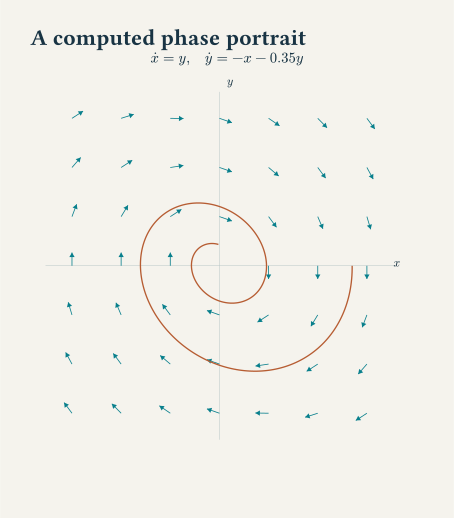
Put the two outputs side by side in your notes. How quickly does each path approach the centre? What changes when you set the damping to zero? These are easier questions to explore when you can change the model and redraw it immediately. For a larger simulation, calculate the results outside Typst and import them into the document.
Make the examples your own
The six projects exercise different parts of the same tool:
| When the document must… | Reach for… |
|---|---|
| Generate a family of visual forms | Functions, loops, and native paths |
| Fit unpredictable text into fixed space | Context, measurement, and explicit budgets |
| Become a physical object | Millimeters, bounded panels, and transformations |
| Let readers choose their next page | Labels and internal links |
| Produce related editions | Content blocks, counters, and validated inputs |
| Explain a changing mathematical model | Computation and coordinate mappings |
You do not need all six ideas in one project. Pick the one closest to something you already need, download its source, and change one thing: a name, a colour, an exercise, or a model parameter. Compile it again and look at what changed.
Then check the result where it will be used. Look at a cover at its final size. Print and fold a nameplate. Click every route in the PDF guide. Build both worksheet copies after changing a question. For a mathematical drawing, check the calculation as well as the appearance.
Once an example works for you, move the useful function into its own file. You can reuse it in the next document without carrying over the old page settings or sample content. That is how a small experiment becomes something you use again.
Keep reading
A few more articles to explore.